


Looking for the correct sign-in page? Use LuxCloud for inverter monitoring: the LuxCloud app on your phone or the LuxCloud Web Monitor Center in a browser. The Login link on our Nigeria website opens a separate My Account area for website access. It does not show your solar plant, inverter, battery, PV, grid, or load data.
A successful login is only the first step. To see live data, the account must be on the right server, the plant must exist, and the dongle must be bound to that plant. As the LuxpowerTek Nigeria technical support team, we’ll walk you through the full path from signing in to monitoring your system, then show you what to check when LuxCloud opens but no inverter appears.
Choose the Right Login Portal for Your Task
For daily monitoring, use the LuxCloud app or the LuxCloud Web Monitor Center. The mobile app is better for quick checks on battery SOC, live energy flow, warnings, and site status when you are away from the system. The browser portal is easier when you want a larger view of plant records, device details, reports, or support evidence.
Use the account on our Nigeria website for website-related access only. A username created under My Account is not automatically a LuxCloud monitoring account. If the page you are viewing shows general account options instead of PV, battery, grid, and load data, return to LuxCloud and use the monitoring credentials created during commissioning.
Before You Start
Install LuxCloud from the official app store and keep your registered email and monitoring credentials ready. Check the compatibility shown for your phone before setup. The current Apple App Store listing requires iOS 15.6 or later, and future app updates may change that requirement.
If your account was not created during commissioning, ask your installer or distributor whether an Installer Code is required. It links the end-user account to the service partner supporting the site and helps our team identify the project. Keep clear photos of the inverter and dongle labels. The Dongle SN and PIN are used for binding, while the serial numbers help us trace the system during account recovery or technical support.
Have the site Wi-Fi name and password ready for setup. Keep the Wi-Fi password out of files or screenshots shared for support. Follow the guide for the installed communication module, as some Wi-Fi dongles require a compatible 2.4 GHz network. Avoid using a hotspot name, IP address, or default password from another tutorial unless it matches the guide for that exact module.
Sign In, Register, or Recover Your Account
For mobile access:
-
Open LuxCloud.
-
Tap the region and language selector in the top-left corner. For an account registered in Nigeria, select Global Server.
-
Enter your LuxCloud username and password.
-
Accept the Privacy Policy and User Terms, then tap Login.
If the expected plant is missing or marked Offline, check the plant server before resetting the password. A plant assigned to another server must be viewed after switching to that server.
For browser access:
-
Open the LuxCloud Web Monitor Center.
-
Enter your LuxCloud username and password.
-
Accept the Privacy Policy and Terms of Use.
-
Select Sign in.
Use your LuxCloud monitoring credentials here. The My Account login on the LuxpowerTek Nigeria website is separate and does not provide access to inverter monitoring.
Installers and distributors can create end-user accounts directly, or share a registration link or QR code. During app self-registration, choose your country or region, then LuxCloud assigns the corresponding server and requests the Installer Code, username, password, and verified email address.
If you forgot the monitoring username or password, use the recovery option connected to LuxCloud, not the Lost Password link for the Nigeria website account. If you cannot recover the monitoring credentials, contact your local distributor or our support team with the inverter serial number and Wi-Fi dongle serial number.
Create a Plant and Bring the Inverter Online
A plant is the monitored site that groups the inverter, dongle, and available battery data. If LuxCloud opens with no plant, the account may be valid while the installation has not yet been added to it.
After registration, tap Create Plant, enter the site details, and choose Next to bind a dongle now or Later to add one from the plant page. Location access is optional.
Use the method supported by the installed dongle:
-
Add Manually: Enter the SN and PIN on the label.
-
Scan Dongle SN: Scan the label’s QR code.
-
Add by Bluetooth: Enable Bluetooth and select a nearby supported dongle. The app can select multiple dongles for a parallel system.
QR scanning needs camera access and a readable code; Bluetooth availability depends on the dongle and app version. If the app opens a Wi-Fi setup screen, select the site network, enter the password, save, and wait for the module to restart.
If “dongle already exists” appears, the dongle has already been added to the server, often through another station or account. Contact the original account owner, installer, supplier, or our support team to arrange removal or transfer. After a router or password change, reconnect the module and check the network requirements listed for that dongle. Do not alter inverter operating settings while testing cloud communication.
Read the Dashboard Without Misreading the System
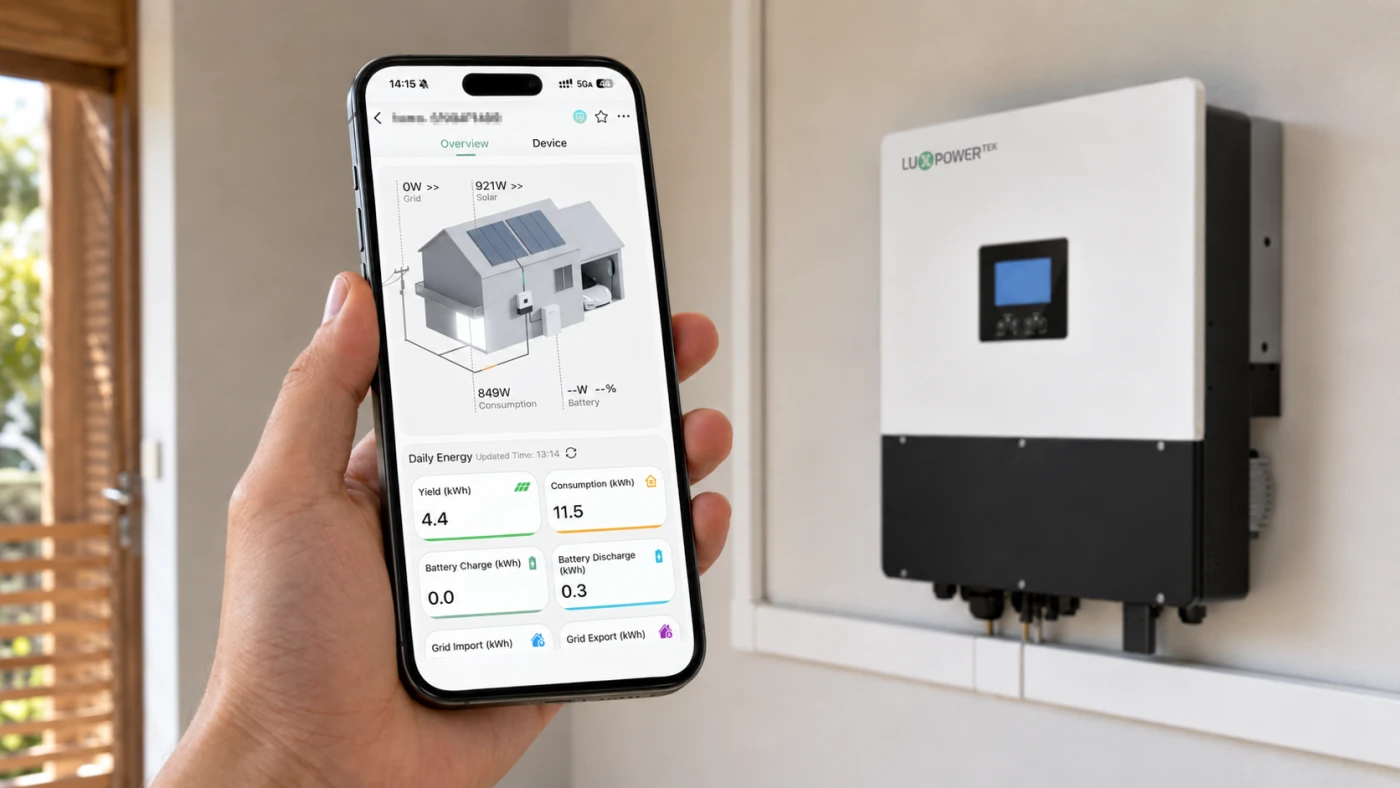
The dashboard summarizes the system’s main energy-flow data:
-
PV: current solar production
-
Load: monitored site consumption
-
Grid: power imported from or exported to the utility
-
Battery power: the rate at which the battery is charging or discharging
-
SOC: estimated battery charge remaining
Read the flow arrows and last-update time together. A battery with a high SOC may still charge when PV exceeds the site load. Grid import during charging is not automatically a fault; compare PV and load, then ask the installer whether an AC-charge schedule is active. At clear midday, zero PV with a current timestamp calls for a review of inverter status and Event Records, while stale data points first to communication.
Daily, monthly, yearly, and total views, together with power curves, show when generation, grid use, or battery activity changed. With compatible battery communication, LuxCloud may also display voltage, current, cycle count, capacity, SOC, SOH, and selected cell data. Missing battery fields can relate to the BMS, cable, master-battery setup, or protocol rather than the login.
Check Event Records before assuming equipment failure; the history helps show whether a condition is current or has already cleared.
Troubleshoot Login, Plant, and Offline Problems
When LuxCloud rejects the login, verify the selected server, username, password, and privacy-policy checkbox, then try the same credentials in the LuxCloud Web Monitor Center. If browser access works, restart or update the mobile app before treating it as an account problem.
If the plant list is blank, confirm the server and the account used during commissioning. The installer may have created the plant under another user. When the plant appears but the inverter does not, compare the Dongle SN and PIN with the physical label and confirm that both the dongle and inverter are listed under Device Management.
If monitoring went offline after a router or Wi-Fi password change, reconnect the dongle and check the password, 2.4 GHz availability, DHCP, and the supported Wi-Fi and WPA settings. Compare the LEDs with the guide for that dongle rather than applying one flash code to every module. Do not change inverter operating parameters during this network test.
If the plant is online but some data is missing, check the last-update time, selected date range, Event Records, inverter status, meter or CT communication, and battery communication. Missing SOC or SOH may reflect battery communication, BMS setup, cable, or protocol issues rather than a login fault.
Planning an Equipment Upgrade?
Once monitoring is working, note the installed inverter model, battery voltage and typical load before comparing replacements or expansion. For an integrated home system, review Eco Beast Pro. For an off-grid inverter, compare the GETA-LB-EU range. A 24V battery replacement may call for the Li-7.5e, while a larger approved high-voltage design can use PSTACK modular storage.
These are different system routes, not interchangeable parts. Share the exact inverter model, battery details and backup target through our Nigeria project form before choosing a replacement.
Why Your Screen May Differ and Which Settings Need an Installer
LuxCloud reflects the equipment connected to each plant, so its menus and data fields can change with the inverter, battery, dongle, firmware, and account permissions.
A GEN2-LB-EU 3-6K home hybrid plant can centre on solar, battery, grid, and backup operation. An SNA 3-6K installation may also include generator-related information, while a TriP2-HB-3P 6-30kW project uses three-phase output and high-voltage batteries. Battery records differ as well: PGEM supports app monitoring of SOC, charge or discharge status, and cycle history, whereas PSTACK is a scalable high-voltage storage system.
Remote settings also vary by model and firmware. The LuxCloud 2.0 manual uses one inverter as an interface example and notes that other models may display different settings. We recommend that homeowners focus on status, trends, warnings, screenshots, and support records. Battery type, charge and discharge limits, CT or meter settings, generator controls, protection settings, parallel configuration, and operating modes should be checked against the current product manual and handled by a qualified installer.
Prepare a Useful Support Request
Before contacting our Nigeria support team, collect the details that shorten the first round of questions: the inverter model and serial number;
-
the battery model and current status;
-
the Dongle SN and PIN;
-
the LuxCloud plant name and registered account;
-
screenshots showing the event or offline status, recorded time, and live power flow;
-
the site location and approximate time the issue began;
-
any recent router, firmware, wiring, battery, or setting change.
A useful message is:
“Plant [name] at [location] went offline at [time] after [change]. The inverter is [model/SN], and the dongle is [SN]. Event [name/status] appears in LuxCloud, and the relevant screenshots are attached.”
Send the PIN and account information only through our official support channel. For installation, upgrade, or service work, use the download centre to confirm the current manual or datasheet for the exact model.
Frequently Asked Questions
Where should I sign in to monitor my Luxpower inverter?
Use LuxCloud for solar monitoring: the LuxCloud app or the LuxCloud Web Monitor Center. The My Account login on our Nigeria website manages website access only and does not display inverter data.
Which app should I use to monitor my Luxpower inverter?
Use the current LuxCloud app from the official download channel or the link on the LuxCloud monitoring page. Older guides may show previous app names or workflows that do not match LuxCloud 2.0.
Why can I log in but see no plant or inverter?
Check the selected server, commissioning account, plant ownership, and dongle binding. A valid account does not automatically contain an installation. A plant must exist and the correct dongle must be added.
Does the Luxpower Wi-Fi dongle work with a 5 GHz-only network?
Dongle compatibility varies by generation. Current official dongle guidance tells users to confirm 2.4 GHz support, so a 5 GHz-only router may prevent connection.
What does dongle already exists mean?
The Dongle SN is already registered on the server, often under another plant or user account. The existing binding should be removed or transferred by the appropriate owner, installer, supplier, or support team.
Can I change inverter and battery settings remotely?
Some supported accounts may display remote controls, but the available menus vary by model and firmware. Electrical, battery, generator, metering, protection, and parallel settings should stay with a qualified installer.
Conclusion
Successful LuxCloud access depends on more than the password. The correct LuxCloud account, server, plant, dongle, and network connection must work together. Once they do, the dashboard helps you understand solar production, battery condition, grid use, site loads, and recorded events. Keep commissioning details with the system, document unusual readings, and contact our Nigeria support team when the evidence points beyond a simple account or Wi-Fi issue.

 Download