




LuxCloud Login & Monitoring
Open the LuxpowerTek monitoring portal, get the LuxCloud app, or find help with your account and connected system.
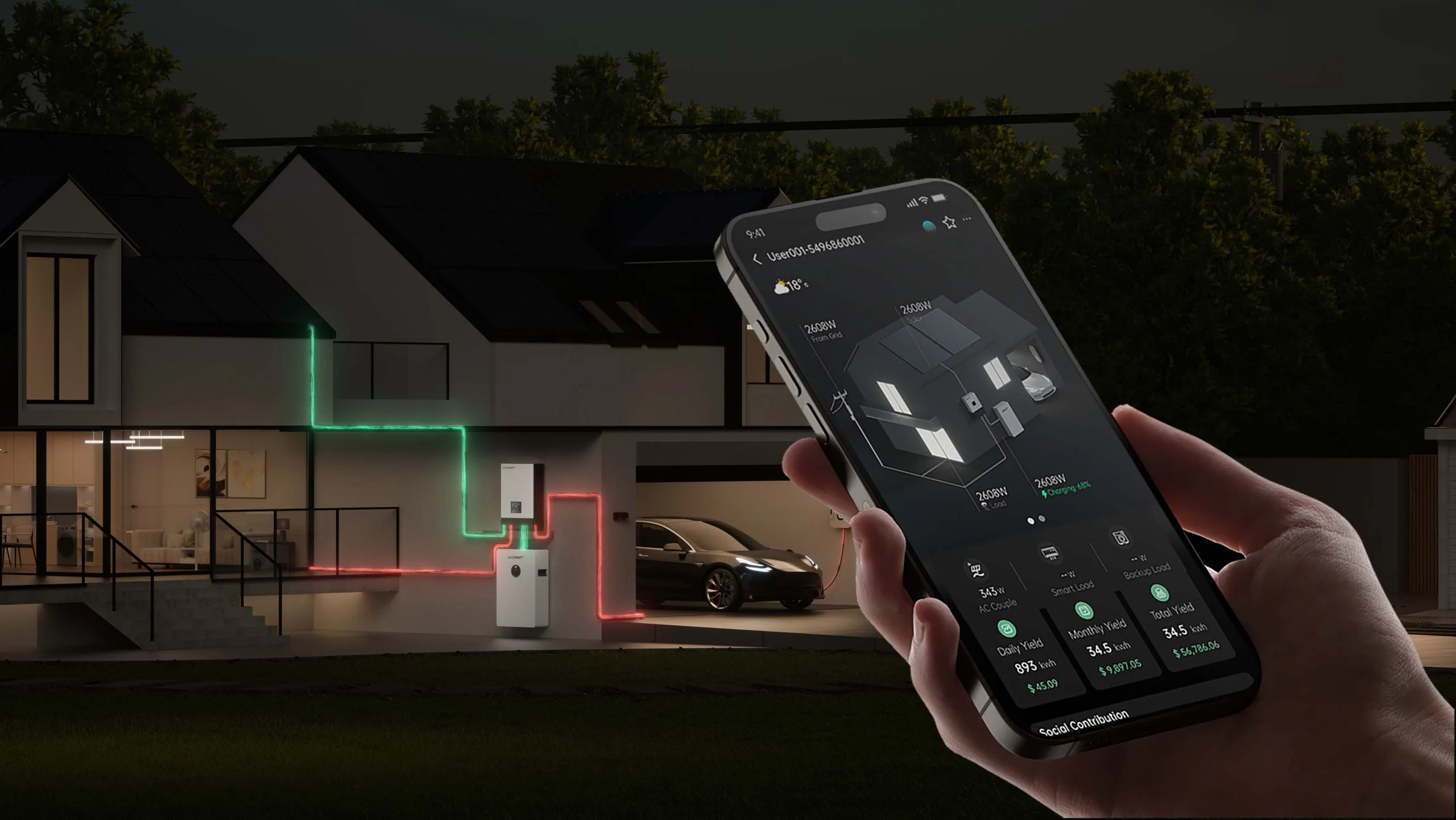
How to log in to LuxCloud
For Luxpower inverter monitoring, use the cloud portal linked above rather than the Nigeria website’s own account login. This page provides access and guidance; enter your monitoring credentials only on the assigned portal or app.
- Select Open LuxCloud Login to open the web monitoring portal.
- Enter your monitoring username and password. If your installer assigned a different regional service, use that service instead.
- Read any privacy and terms notices shown on the login screen, then follow the sign-in prompts.
- After signing in, select the plant for your installation. For missing devices or access problems, see Login and account help below.
Download the LuxCloud app
Use the store links above for LuxCloud on Android or iOS. Check the app name and publisher in the store before installing. A web browser can open the monitoring portal without installing a desktop app.
Use the account and platform assigned during installation. If your installer supplied a different regional portal or an existing account, confirm which one applies before creating another account.
Check your solar and battery system
Once your compatible inverter and dongle are connected to the correct plant, LuxCloud can show operating data such as solar generation, battery charge and discharge, grid and load status, and device events. Available data and controls depend on the device, connection and account permissions.
- Open the plant associated with your installation.
- Check the device’s online status and the time of its most recent data.
- Compare current readings with recent history and event records.
- Save relevant screenshots before contacting your installer or the Nigeria support team.
Review energy history and battery data
In LuxCloud 2.0, open the inverter details to compare Day, Month, Year and Total views, or review ongoing and resolved Event Records. For supported batteries, the battery details page can show state of charge (SOC), state of health (SOH), voltage, current and cycle count. Available readings depend on the connected equipment and account access.
Changes to battery settings, grid parameters or operating modes should follow the current manual and qualified installer guidance.
Login and account help
First-time access and installer handover
Before creating a new account, ask your installer whether monitoring access has already been set up for your system. Confirm the assigned portal, your username and which plant you should see. If someone else manages the installation, ask them to arrange the appropriate access rather than sharing their password.
If you need a new account, your installer or distributor can provide a registration link or QR code. The LuxCloud 2.0 app also offers Sign Up, with country/region selection and email verification. If asked for an Installer Code, request the code from your installer or distributor; it links registration to their account hierarchy.
Forgotten password or login failure
Use the password recovery option offered by your app or assigned portal. Confirm that you are using the correct account and regional service. If recovery is unavailable or the account belongs to your installer, contact the account administrator or Nigeria support. Never send your account password in an enquiry.
Device offline or no plant data
Check local internet access, dongle status and whether the correct plant is selected. Record the inverter model, serial number, dongle details and any error message. If a device is already bound to another account, ask the installer or support team to review ownership and access.
LuxCloud FAQ
Where is the LuxCloud login page?
The Open LuxCloud Login button at the top links to the LuxpowerTek web monitoring portal. Existing customers should use the account and service assigned by their installer.
Can I monitor from a phone and a computer?
LuxCloud is available through the linked Android and iOS apps and the web portal. Device access depends on the account, plant and supported system.
Why can I sign in but not see my inverter?
The device may be offline, assigned to another plant or not shared with your account. Check plant selection and ask your installer to confirm device binding and permissions.
What should I send to Nigeria support?
Include your location, model, device serial number, dongle details and a screenshot of the issue. Use the contact form or the published contact channels. Do not include passwords.
 Download