




LuxCloud Login & Monitoring
LuxCloud connects solar production, battery activity and system events across a phone or web browser. Web access, mobile apps and local support keep monitoring information within reach.
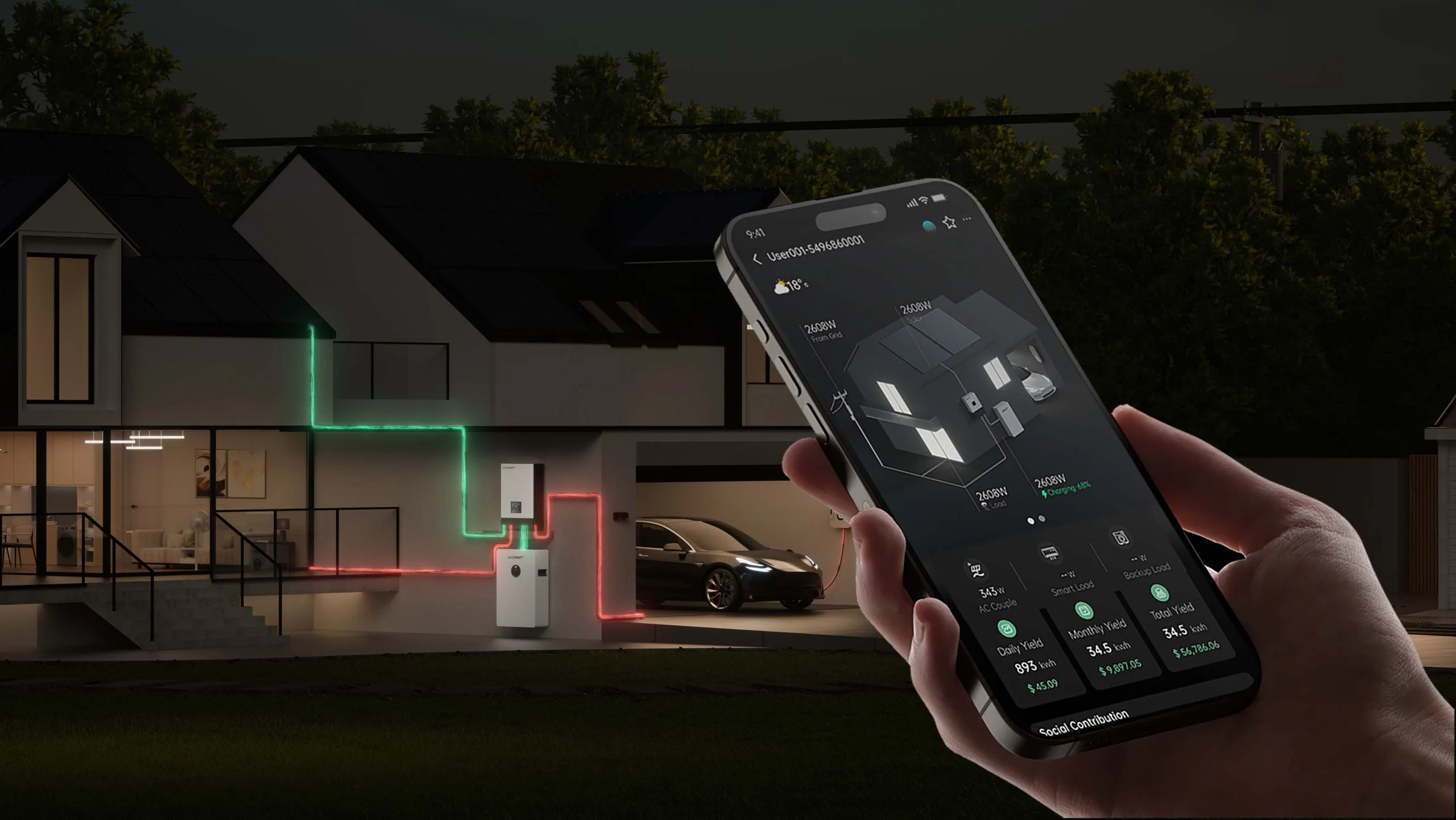
LuxCloud web access
The LuxpowerTek web portal provides browser access to plant and inverter monitoring. Monitoring accounts are separate from the Nigeria website account, with access linked to the assigned plant and service.
- Web monitoring through the LuxCloud portal.
- Plant access through the registered monitoring account.
- Account and regional-service settings associated with the installation.
- System data, history and events within the selected plant.
LuxCloud on Android and iOS
The LuxCloud app brings solar and battery monitoring to Android phones and iPhones. Browser access also makes system information available on a computer without a separate desktop application.
Web and mobile access follow the account, plant and regional service associated with the installation.
Solar and battery monitoring in one place
LuxCloud brings solar generation, battery activity, grid and load information into a single monitoring interface. Available data and controls depend on the connected equipment and account permissions.
- Plant-level views of solar production and energy flow.
- Device online status and the time of the latest update.
- Operating history for daily, monthly and longer-term comparisons.
- Event records that support system maintenance and local assistance.
Energy history and battery data
LuxCloud 2.0 includes Day, Month, Year and Total views, alongside ongoing and resolved Event Records. Supported batteries can provide state of charge, state of health, voltage, current and cycle data.
Remote settings are available only for supported devices and account permissions. Electrical and protection settings remain part of the qualified installation and service process.
Account access and local support
Account setup and handover
End-user monitoring access is associated with the installed system. Registration links, QR codes and the LuxCloud 2.0 Sign Up function provide account-creation routes, with country or region selection and email verification.
An Installer Code links an end-user account to the relevant installer or distributor account hierarchy.
Account recovery
Monitoring-account recovery belongs to LuxCloud and the assigned service. The Nigeria website account uses a separate login and password-recovery process.
Plant and device assistance
Plant ownership, dongle binding and network status determine which equipment appears online. Our Nigeria support team provides assistance with monitoring access and connected-system enquiries.
The LuxCloud setup and monitoring guide explains registration, plant setup, dongle binding and offline conditions.
Choosing a system or replacement
If you are checking an installed system in LuxCloud, its plant and event data can help explain what is happening. If you are planning a new installation or replacing an inverter or battery, use the product route that matches the system before requesting a quote.
- Browse LuxpowerTek products for inverter and battery options.
- Compare inverter categories for single-phase, three-phase, hybrid and off-grid systems.
- Review battery storage options for compatible storage systems.
LuxCloud FAQ
Where is the LuxCloud login page?
The Open LuxCloud Login button leads to the LuxpowerTek web monitoring portal. Monitoring access belongs to the account and service assigned to the installation.
Can I monitor from a phone and a computer?
LuxCloud supports the linked Android and iOS apps and the web portal. Plant visibility and available data depend on the account, equipment and system connection.
Why can an account open without showing the inverter?
An account can exist separately from a plant. Plant ownership, device binding, account sharing and online status determine which inverter data appears.
What support is available in Nigeria?
Our Nigeria team provides monitoring-account and connected-system assistance through the published contact channels. Model information, device identifiers and event records provide context for technical support; passwords remain private.
What you can monitor in LuxCloud
LuxCloud is a solar monitoring app and web portal for connected Luxpower systems. Use it to follow solar production, battery activity, grid and load data, plant status and system events from a phone or computer.
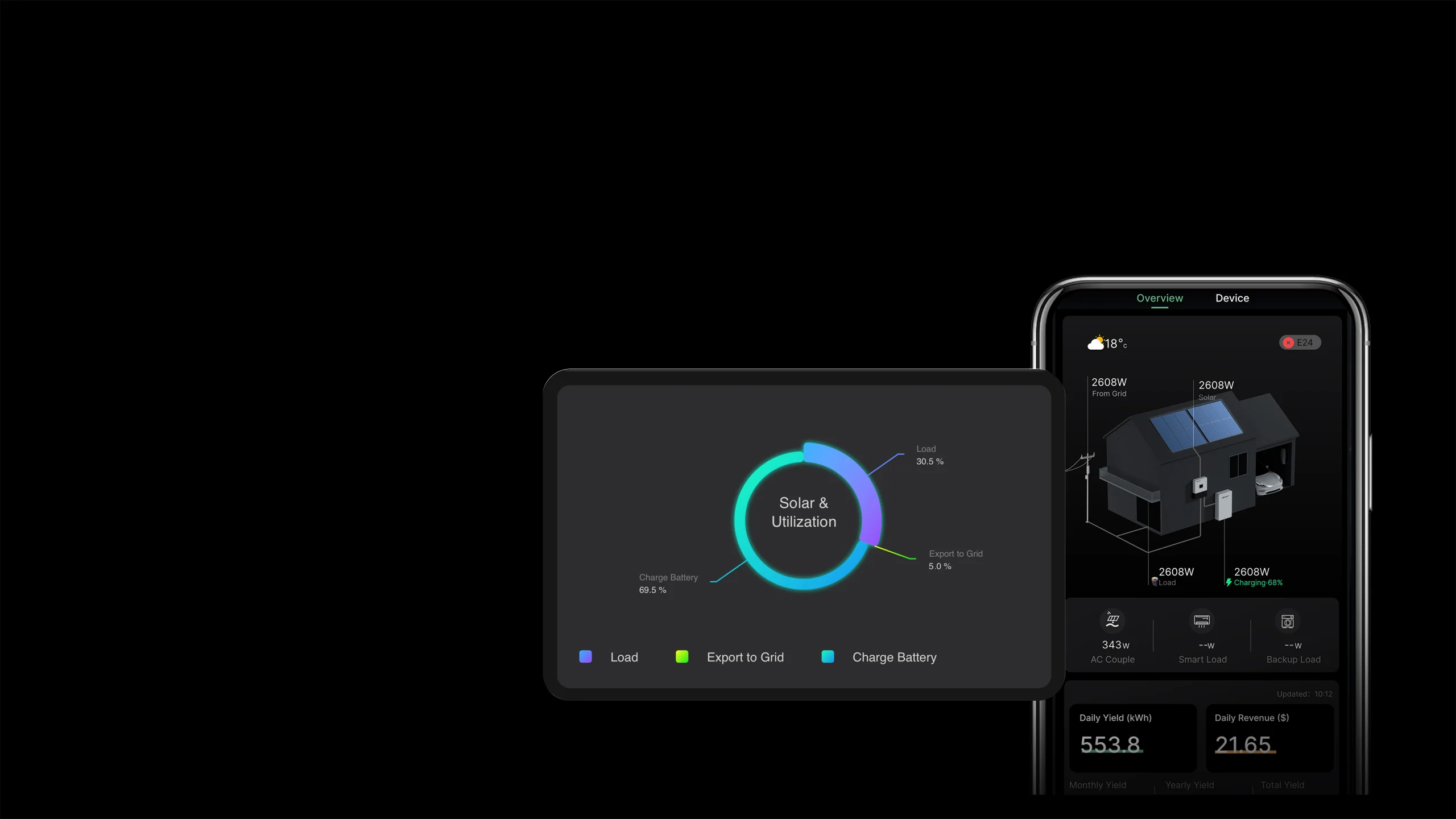
Choose the right LuxCloud route
For homeowners and end users
Use the Luxpower web login on a computer or the LuxCloud app login on Android and iPhone to check your plant, energy flow and event records. If the LuxCloud app is not working, confirm the account, selected service, plant and device connection before changing electrical settings.
For installers and distributors
Use the Installer Code and plant information to support account handover, dongle binding and connected-system assistance. Keep the inverter model, serial number, Dongle SN/PIN and relevant screenshots ready for the next support step.
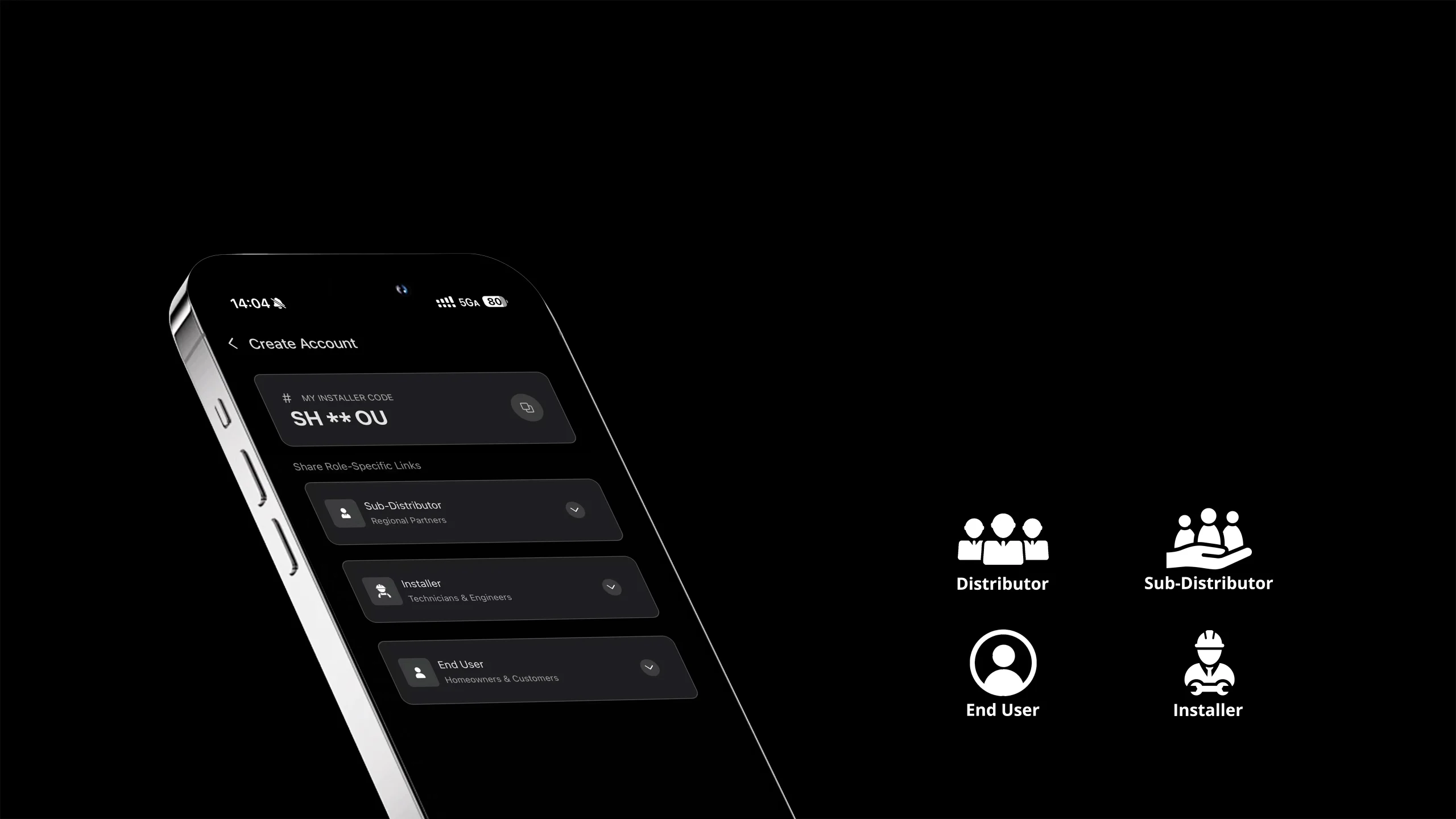
How to get started with LuxCloud
- Open the Luxpower web login or download the LuxCloud app.
- Register or sign in with the monitoring account assigned to the installation.
- Confirm the region or service used by the account.
- Create or open the Plant associated with the site.
- Bind the Dongle using the supported SN/PIN, QR-code or Bluetooth method.
- Review solar, battery, grid, load and event data, then save screenshots before contacting support.
 Download